Manual-input analyses
Study centric data management is Cochrane’s expected approach to data management in new intervention reviews. See When should I use study centric data management?.
It is recommended that authors set up their analyses at the protocol stage. See Standard C21 ‘Planning the synthesis of results’ of the MECIR Manual.
Create a manual-input analysis
Follow the instructions to create analysis groups and analyses. Select 'Manual’ when you are prompted to choose between creating an analysis based on study data or manually entered data. Then, set the analysis options.
Once you have created the first manual analysis in the analysis group, you can edit the group labels –which only apply to manual analyses- of the analysis group.
Add studies and study data to the analysis
Once you have defined the analysis options, go to the analysis 'Data' tab and select ‘Add data row’ to add a study from the list of included studies.
In case of a long list of studies, you can use the filter to find them more easily.
Enter the data by:
- typing the data manually into the table cells,
or
- pasting data -in tabular form- from an external source.
You can also copy data from an analysis in RevMan and paste it into an external file. More information is available on copying and pasting data into and from analyses.


To delete a row, click the ‘Action’ button for the row that you want to delete and select ‘Delete data row’.
Read more about using the calculator to transform raw data extracted from study reports when it does not match the format required for meta-analysis.

Add a footnote to data rows
You can add a footnote to one or more of the studies included in the analysis. Go to the analysis ‘Data’ tab and select the 'Action' button of the relevant study row. Select ‘Edit footnote’ to add the footnote. Each footnote will be numbered.
Once you have entered the footnotes, check how they will appear in the forest plot to ensure that they are fully visible by previewing your submission or viewing a version.
Please keep footnotes as concise as possible and check that they are fully visible in the forest plot graph.
Forest plot settings
The published review will display the forest plot based on the forest plot settings defined in each analysis ‘Graphs’ tab.
Once you have created and set up your analysis, go to the 'Graphs' tab to adjust how the forest plot is displayed.
You can sort studies by study ID, year of study, weight, effect size, or risk of bias item.
The scale is set to 100 by default, but you can change it to optimize the presentation of your results if needed.
If you want to include the risk of bias summary in the forest plot, select ‘Show risk of bias summary’.

Migrate a manual analysis to study-centric data
Most manual analyses can be converted to automatic (study-centric data) analyses. This is currently supported for dichotomous, continuous, contrast (GIV) analyses including analyses subgrouped by covariate or intervention and analyses filtered based on a covariate. The tool does not support migrating analyses subgrouped by variants of the outcome, within study subgrouping or OE/variance data.
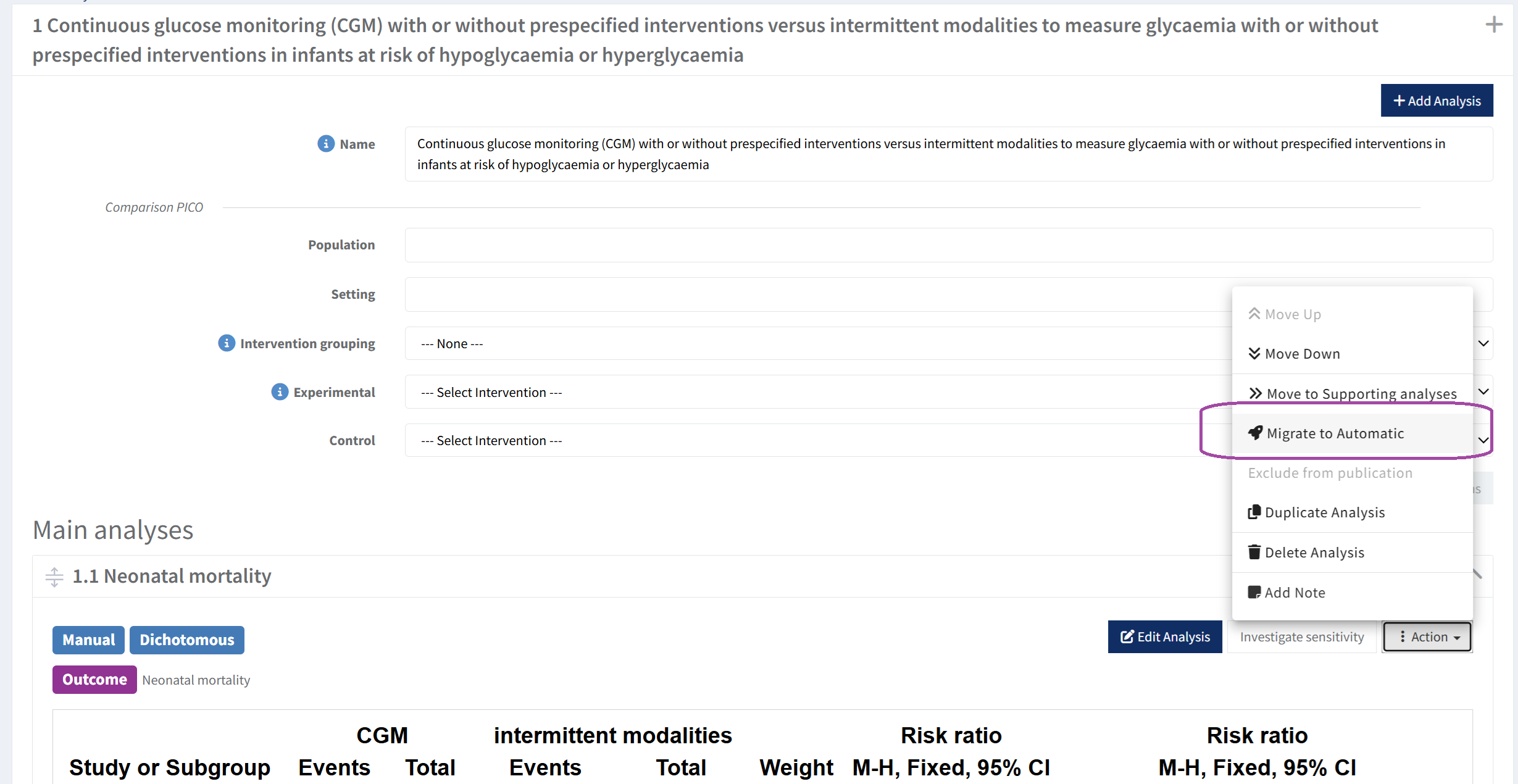
See this video tutorial on how to migrate a manual analyses or follow the steps below:
- Open the action menu on the manual analysis you want to convert and select Migrate to automatic.
- RevMan checks whether the analysis is eligible. If not, a message explains why.
- If needed, the migration tool guides you to select or add new outcomes, interventions and how to map subgroup names to covariate categores or interventions and apply filters based on covariates.
- Migration is irreversible, at the bottom of the migration dialog you can choose to:
- Tag a version to be able to revert: RevMan automatically tags the current version with the description “Version tagged before migrating analysis x.y”. You can find this version in the History dialog.
- Duplicate analysis before migration: RevMan automatically creates a copy of the manual analysis before migrating it, so you can compare the two.
- Select Migrate to confirm. A success or failure message is shown.
- On success, the analysis becomes automatic, and its options, result data, graph settings, risk of bias 2 data, and Summary of Findings data are transferred to or maintained on the study.
Have you used the tool and have feedback or need help?
Contact rhall@cochrane.org.