-
Created by
 Juliane Ried, last updated by Judith Deppe on Mar 19, 2026
2 minute read
Juliane Ried, last updated by Judith Deppe on Mar 19, 2026
2 minute read
By default, all your Linguists will have the same settings in Phrase. You can change their permissions as described below.
1. Go to the Users menu or search for a user using the magnifying glass icon in the right-hand corner.
On the Users view, you will see the list of all users. You can apply the "Filter" button to find specific users you are looking for, e.g. filter by language or role.

2. Click on the last name of the user to open their user details.
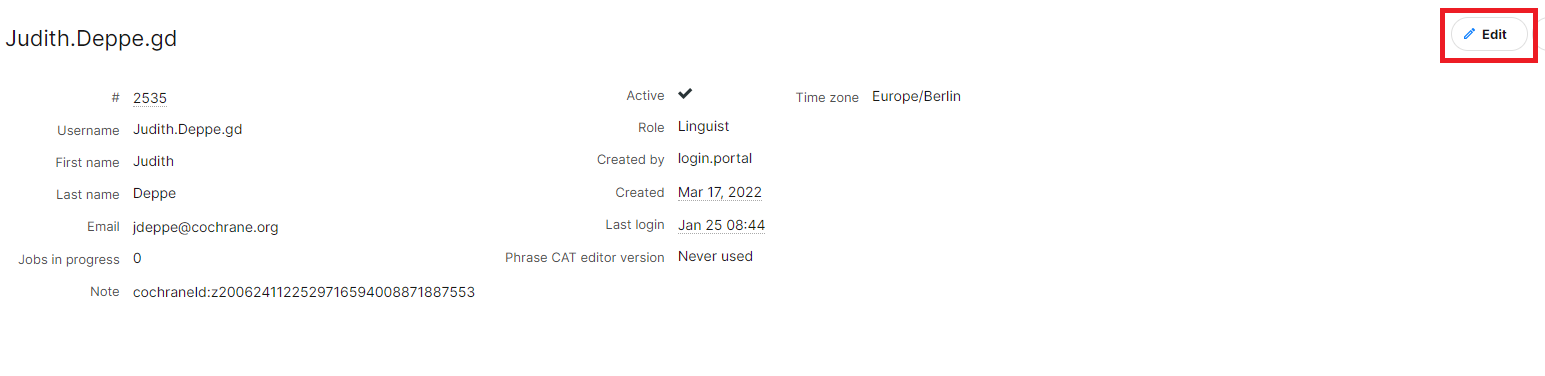
When you see the details of the user, click on "Edit" in the top right corner.
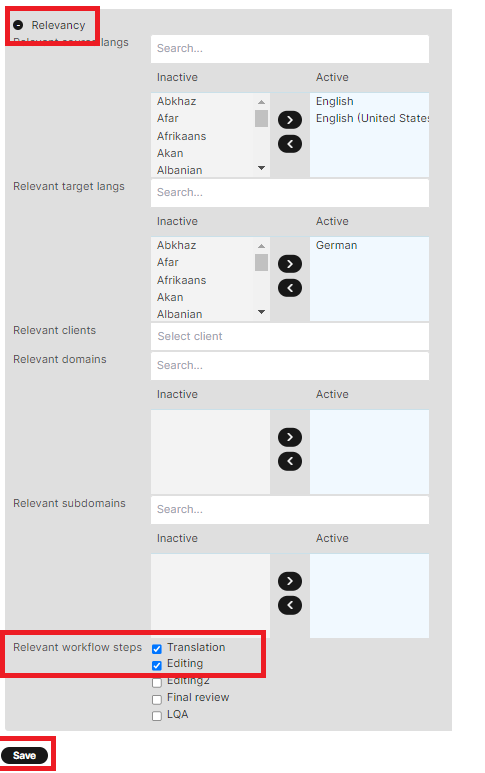
3. Edit the workflow step(s) that the user should have access to, and click "Save".
Scroll down to the "Relevancy" section of the details, click on it to open it, and scroll down again to select the workflow step(s) that the Linguist should have access to. Click "Save".