Import references for studies
Import references to studies
You can bulk import references for studies. To proceed with the import, you need to have a text file of the references in RIS format. Bulk import is not possible in any other format.
In the left-hand navigation menu, go to Data > Studies > Included/Excluded/Awaiting classification/Ongoing. Click the 'Action' button in the top-right corner of the page and select 'Import study references' to upload the RIS-formatted text format file of your references.
The following adjustments will be made to all the studies and references on import:
- New studies that are not yet in the review will be added automatically.
- References will be mapped to the studies they belong to (both existing and new):
- If the NS field in the RIS file has been populated with the study ID, this will be used for deciding where the reference is imported. Covidence and RevMan export currently support this.
- Otherwise, references are matched based on data in the references that are already in the review.
- If a DOI exists, data from Crossref will be used to populate the references.
- If a DOI doesn’t exist, but there is a PubMed ID, data from PubMed will be used to populate the references.
- If a PubMed ID doesn’t exist, data from CRS will be used.
- If the reference doesn’t exist in CRS, data in the import file will be used.
- All references in the review will be updated to follow the Cochrane style.
- If you export excluded references from Covidence and import them into RevMan, reasons for exclusions will also be imported.
A review version is automatically tagged before the import process starts.
Move a reference to an Included or Excluded study
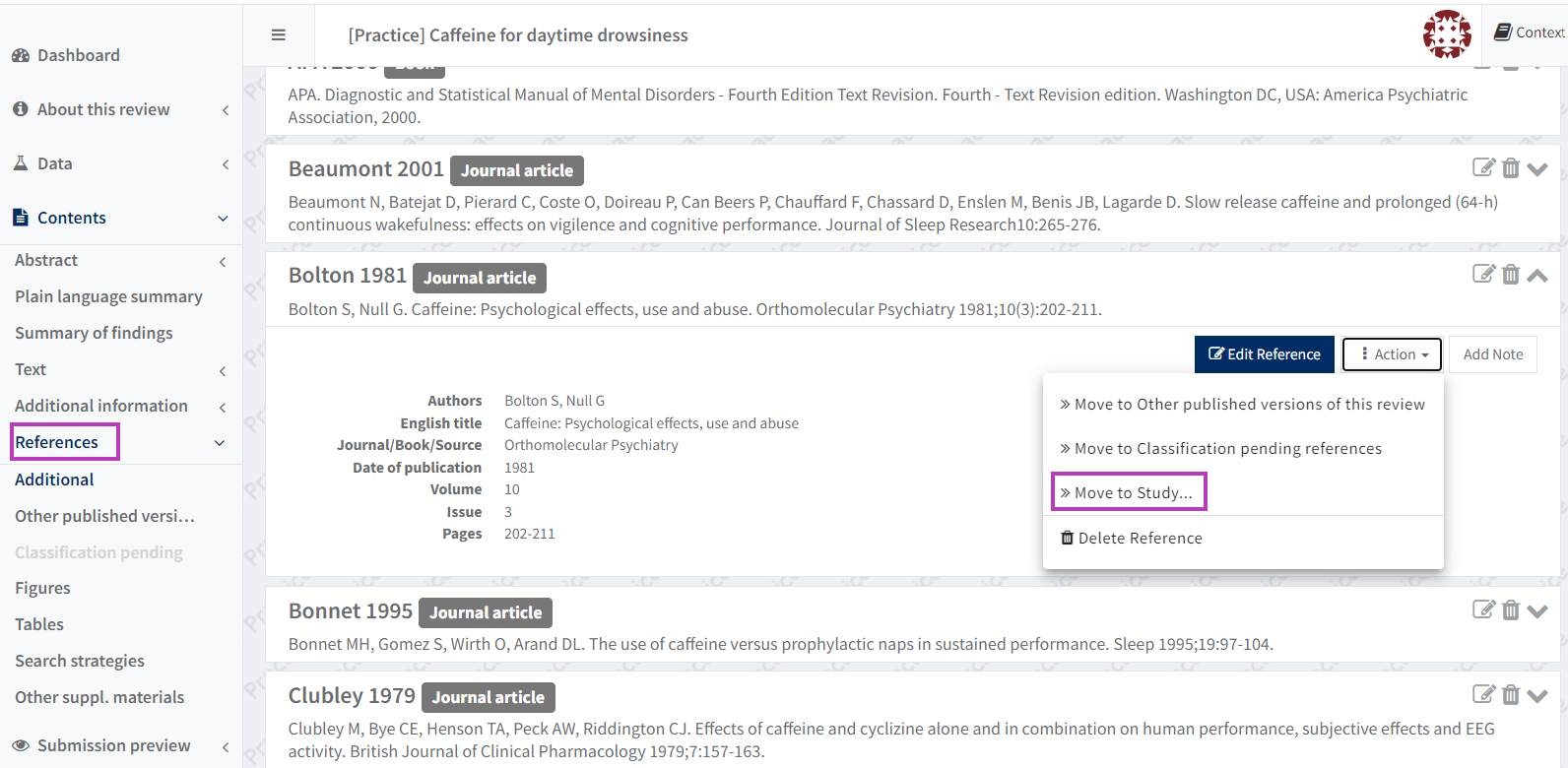
Click on the arrow icon to the right of the reference ID to expand the panel. Click on the ‘Action’ button, select ‘Move to Study’. From the 'Select study' pop-up window, select to which study you want to move the reference.
Note that you cannot undo this edit. See Enter study data manually to learn how to manually add a study to the list of Included (or Excluded) studies.
Move a reference back to ‘Additional’ references
It is not possible to move a reference from the Included or Excluded study section back to ‘Additional’ references.
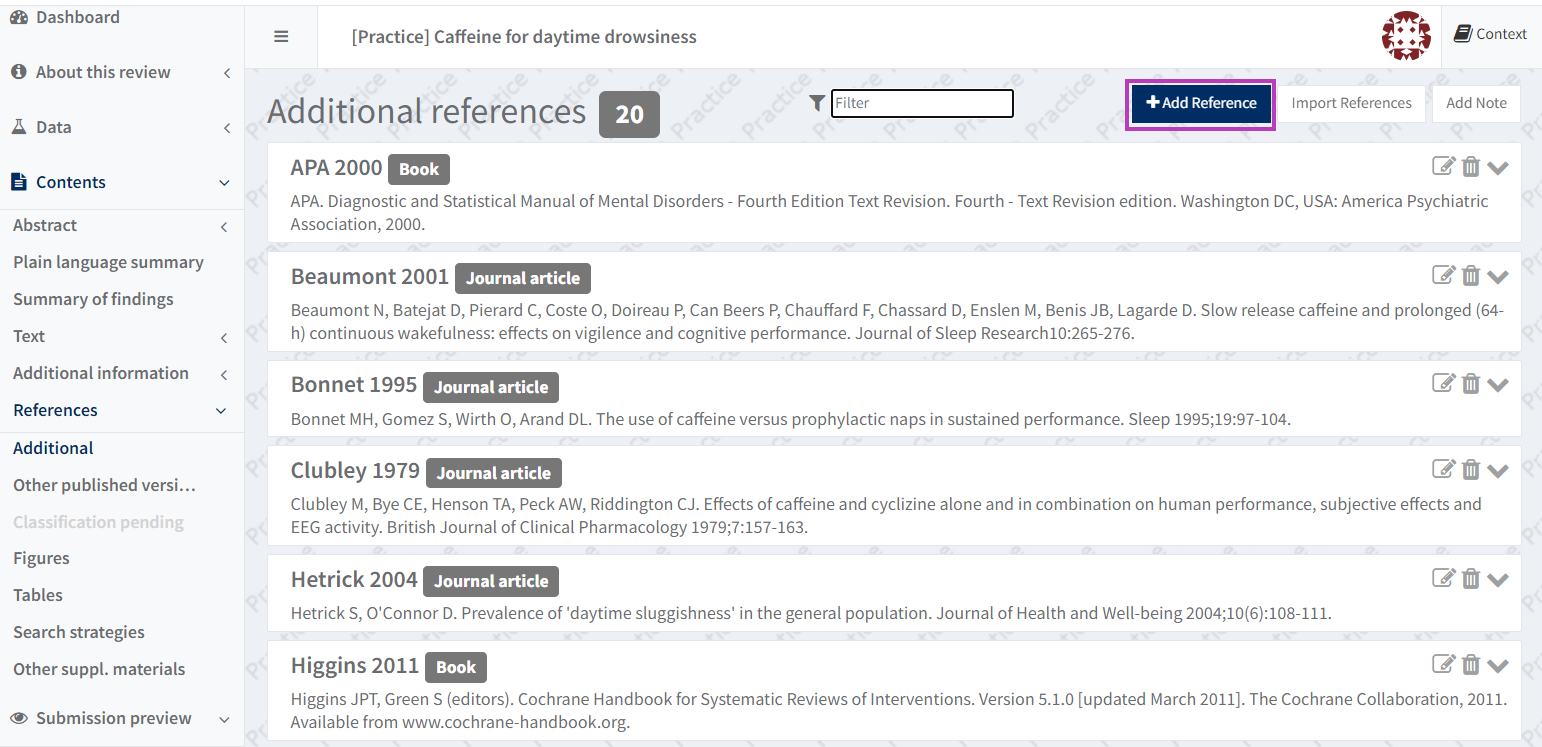
If you have moved a reference by mistake, delete it from the study (see Enter study data manually) and either import the single reference in a RIS file again or manually add it to the 'Additional' references section by using the ‘Add Reference’ button.
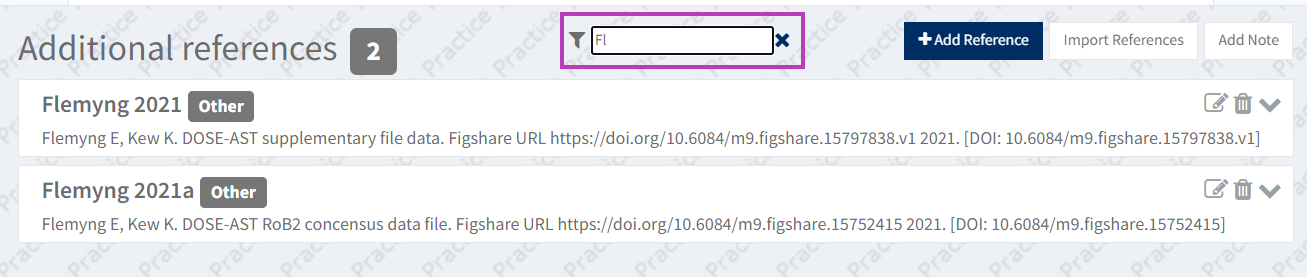
Reference filter
When checking a long list of references, you can use the Filter field at the top of the page to search for and navigate to a specific reference from the list.