Track changes and inline comments
Start tracking changes
To start tracking changes in your review, navigate to the section you want to edit and place your cursor in the text field to display the editor toolbar.
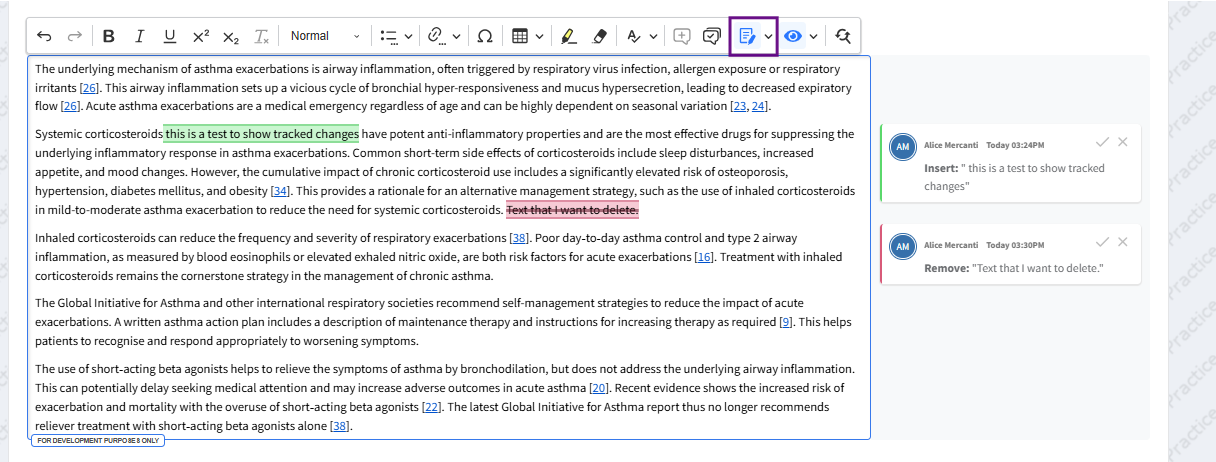
The track changes icon is a document with a pencil: . Click on this icon to enable/disable track changes in your review.
When Track changes is enabled in one text section, it will apply to the whole review. You can then move between different text sections of the review and changes will continue to be tracked.
When tracking changes, new text appears highlighted in green, and deleted text appears strikethrough in red.
Accept or reject tracked changes
Hover over a tracked change, either in the text or in the sidebar, and select the green checkmark to accept the suggested change or the red X to reject it.
Alternatively, you can select a full sentence or paragraph and use the option to accept or discard all suggestions in that specific selection from the track changes dropdown menu. You can also choose to accept or reject all the suggested changes in a particular text section.
To resolve all tracked changes in a review, see Global edits.
Tips
- Use the 'Tab' key of your keyboard to move to the next text section without using your mouse. You can continue to accept or discard suggested changes (as per above) by clicking on the relevant option with your mouse.
- When tracking changes, the word count does not include any deleted text.
Add inline comments
Writing a review as a team requires collaboration. The 'Comments' option allows you to add and reply to inline comments. These comments can be edited, resolved or deleted as required. You can also use the commenting feature to respond to tracked changes before deciding on whether to accept or reject them.
Cochrane reviews
Cochrane authors should resolve all comments before downloading submission files. Any active comments will be archived upon downloading submission files from RevMan. All comments will then be available in the 'Comments archive' section.
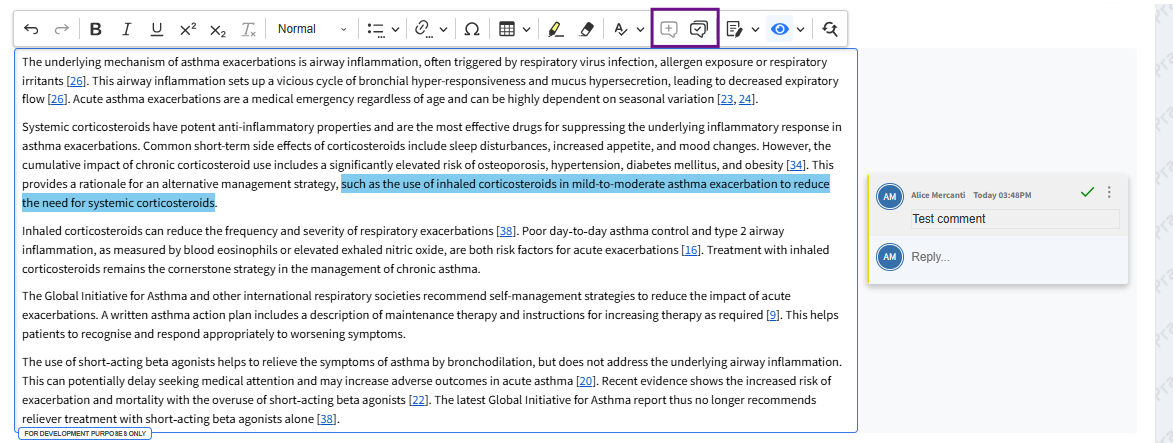
To add a comment, select the relevant text and click on the 'Comments' icon (a dialogue box with a plus sign) in the text editor toolbar.
All comments marked as resolved will move to the 'Comments archive'. To access the archive, place your cursor in the text and click on the corresponding icon (a dialogue box with a checkmark) in the editor toolbar.
You can reopen an archived discussion by simply adding a reply to it.
Show or hide tracked changes and comments
By default, RevMan shows tracked changes and comments when you open a review. You can customise how these are displayed.
Place your cursor in any text section to display the text editor toolbar. Click on the dropdown arrow of the eye-shaped icon to select an option for displaying tracked changes and comments. You can choose between inline view, narrow sidebar or wide sidebar. The sidebar views will show tracked changes and comments in either a narrow or a wide bar to the right of the main text.
Once you have selected an option, it will be saved for the next time you open a review.
If you want to hide tracked changes and comments, simply click on the eye-shaped icon again.