
1. Click on this link:
...
https://
...
eu.
...
phrase.com/
...
idm-ui/
...
signin/sso?uniqueId=cochrane
2. Click "Continue to login".
3
...
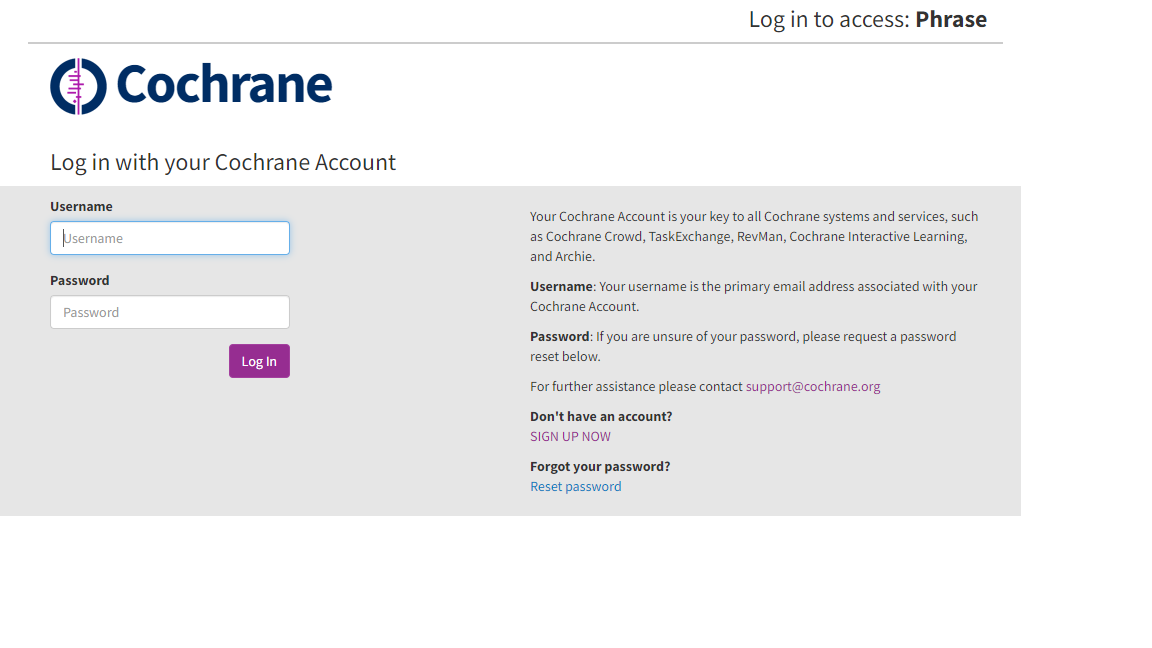
. You will be asked to log in to Phrase
...
with your Cochrane Account.
Enter your Cochrane Account username (email address) and password.
...
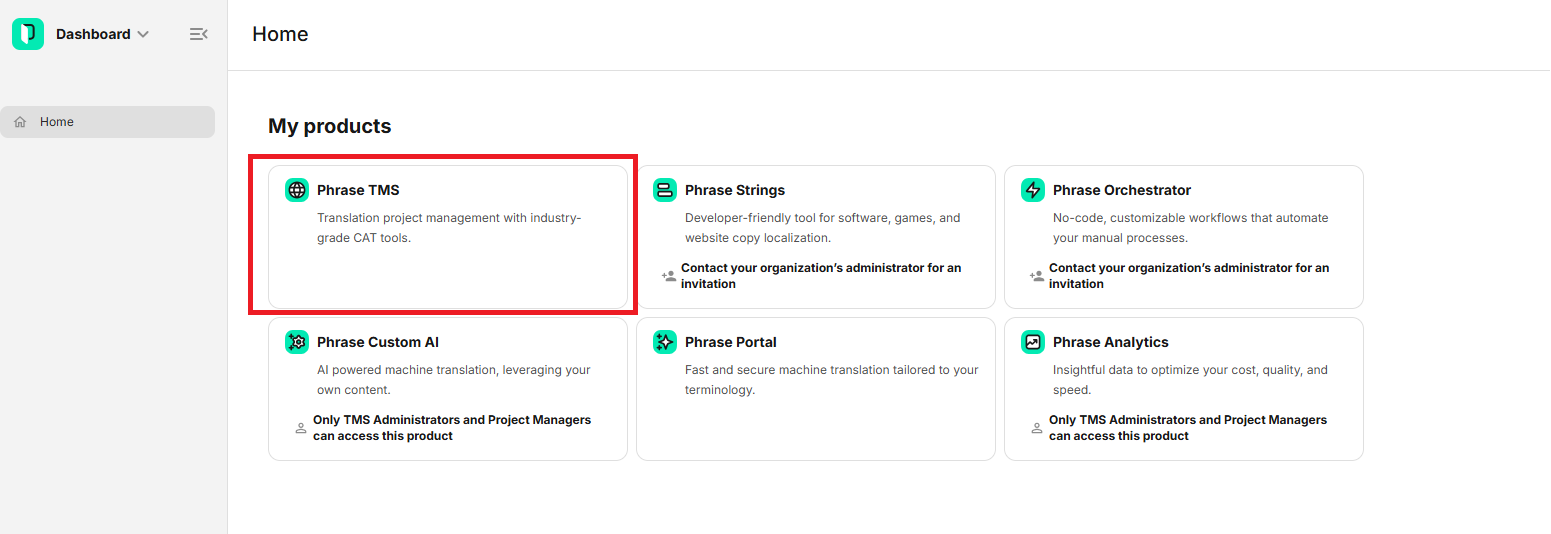
4. After logging in, please select “Phrase TMS” from the list of products on the dashboard.
5. You will be logged in to Phrase
...
.
You will see the list of projects. When It will be empty when you log in for the first time, it will be empty.

If you are trying to access Phrase through the link: https://cloud.memsource.com/web/login/auth or https://eu.phrase.com/idm-ui/signin, click the “Log in with SSO” button.
Next, enter “cochrane-sso” “cochrane” as the Company domain and click “Continue” to log in with your Cochrane Account as described above.
...